You’re scrolling through your followers list and something feels off.
Someone who used to like every single post — gone. A person you followed back weeks ago — nowhere to be found. And now you’re sitting there wondering: “Did they actually unfollow me, or am I just overthinking this?”
You’re not overthinking it. And no, you’re not the only one who does this.
The real question is — how can I know who unfollowed me on Instagram, without downloading some sketchy app that wants your password?
That’s exactly what this guide is about. We’re going to use Instagram’s own official data — a ZIP file that Instagram gives you directly — and run it through a free tool to see exactly who unfollowed you. No password sharing. No third-party app logins. No sketchy permissions.
Why Instagram Won’t Just Tell You Who Unfollowed You
Enter Your Instagram Username
Real talk though — Instagram has known about this frustration forever. And they’ve deliberately chosen not to build an “unfollowers” feature into the app.
Why? Because knowing who unfollowed you often leads to drama, callouts, and the kind of behavior that makes Instagram look bad. So they just… didn’t build it.
But here’s the thing they did build: a way to download your own data. Every follower, every following, every account interaction — all of it, in a neat ZIP file. Instagram has to offer this by law (GDPR and similar data privacy regulations).
So we’re going to use that. Legally. Safely. And for free.
What is the Instagram Data ZIP File?
Think of it like Instagram handing you your own file cabinet.
When you request your data, Instagram compiles everything connected to your account into a downloadable ZIP file. This includes things like your messages, profile info, account activity — and most importantly for us:
- Your followers list
- Your following list
Both in JSON format. And By comparing these two lists, you can easily see: —
- Who unfollowed you
- Who doesn’t follow you back
- Who you recently unfollowed
Why this method beats every unfollower app out there: Most Instagram unfollow tracker apps ask for your Instagram password or full account access. That’s a massive security risk — accounts get compromised this way all the time. The ZIP file method needs none of that. The data comes straight from Instagram. It’s 100% safe.
Why Should You Use the Instagram ZIP File Method?
Using the Instagram data ZIP file is the most secure method to track unfollowers because:
- No Instagram login is required
- No password sharing
- No risky third-party apps
- Data comes directly from Instagram
- 100% accurate results
This makes it completely safe and privacy-friendly.
How Can i know Who Unfollowed me on Instagram Free
Instagram doesn’t provide a direct way to see unfollowers inside the app. But there is a safe and official method to check it — by downloading your Instagram data ZIP file and analyzing it with tools like Unfollowers Trackers.
In this guide, I’ll show you the exact step-by-step process to download your Instagram followers data and find who unfollow you.
Quick Guide: Download Instagram Data ZIP File
Here is a simple overview of the process:
- Open your Instagram profile menu
- Go to Accounts Center
- Select Your Information and Permissions
- Tap Download Your Information
- Click Create Export
- Choose your Instagram profile
- Select Export to Device
- Customize export settings:
- Enter your email address
- Select Followers and Following only
- Choose All Time as date range
- Select JSON format
- Click Start Export
- Wait for Instagram confirmation email
- Download the ZIP file
- Upload it to UnfollowersTrackers
- View your Instagram unfollowers list
How to Download Your Instagram ZIP File Step-by-Step Guide
Okay, here’s where we get into the actual steps. Don’t skip any of these — especially the format selection part. That one trips people up.
Step 1: Open Instagram and Go to Settings
- Open the Instagram app
- Tap your profile picture (bottom right)
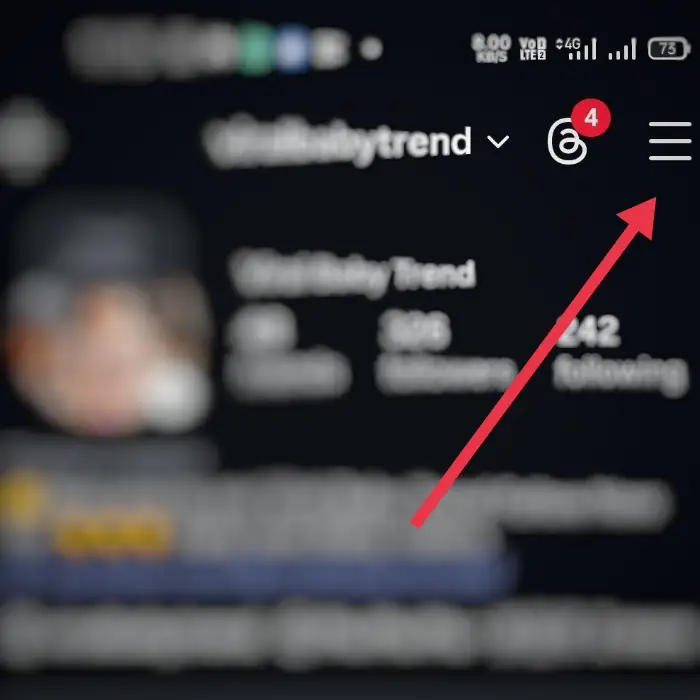
- Tap the three lines (☰) in the top right corner
- Go to Settings
Step 2: Open Accounts Center
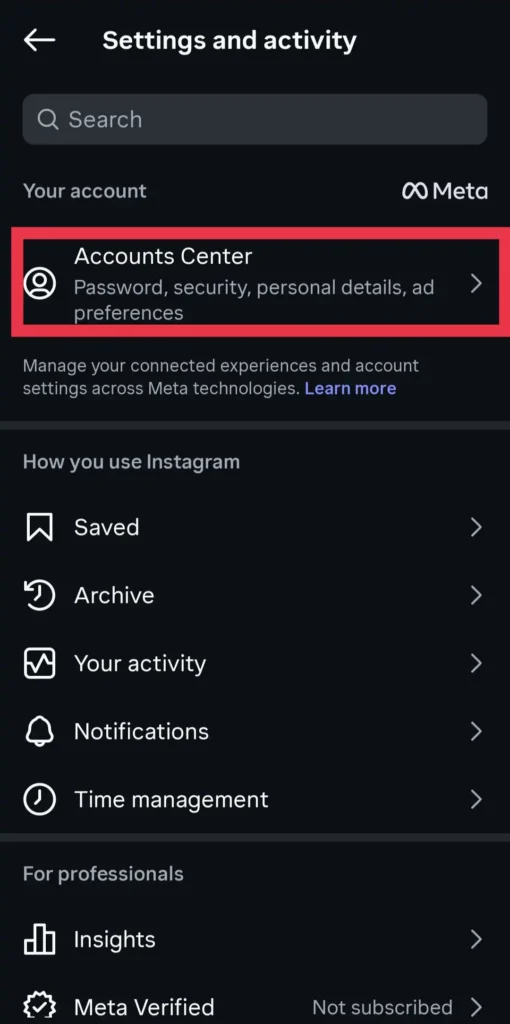
Inside Settings, tap Accounts Center. This is Meta’s unified settings hub — it handles all your connected Meta accounts.
Step 3: Go to Your Information and Permissions
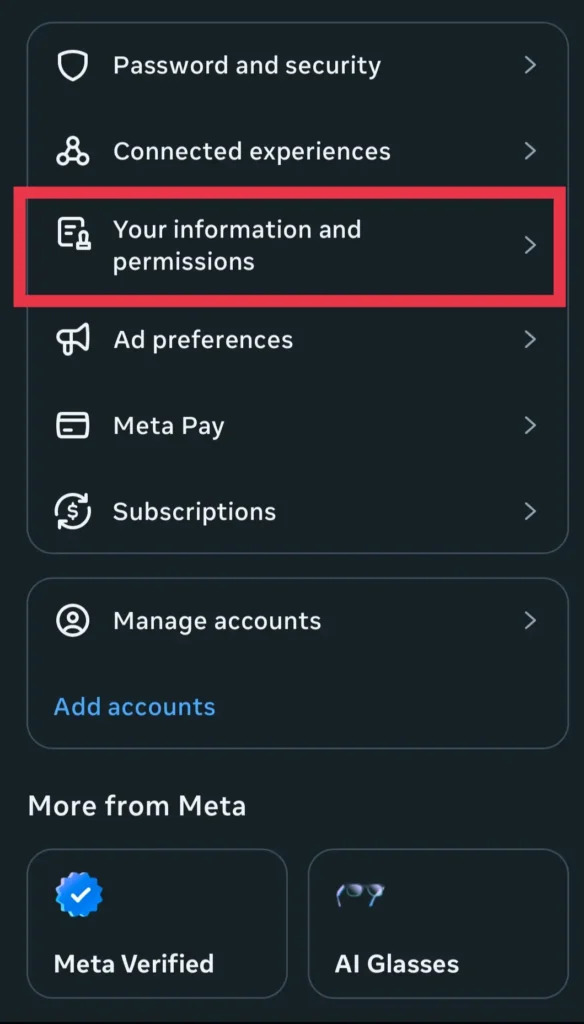
Inside Accounts Center, tap Your Information and Permissions. This is where all the data download options live.
Step 4: Tap “Export Your Information”
You’ll see a section called Export your information — tap that. If this is your first time doing this, Instagram might ask you to log in again. That’s normal. Just verify and continue.
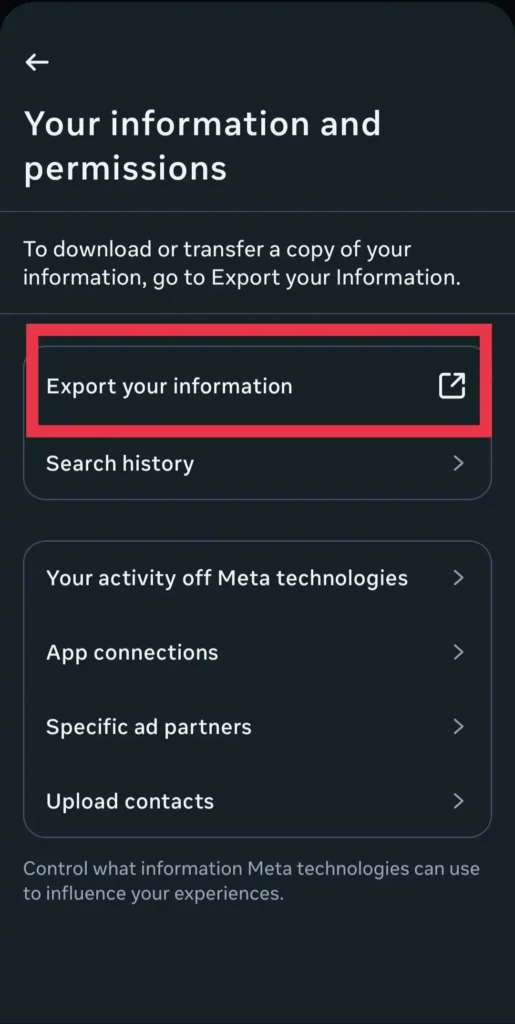
If you are doing this for the first time, Instagram may ask you to log in again for security reasons.
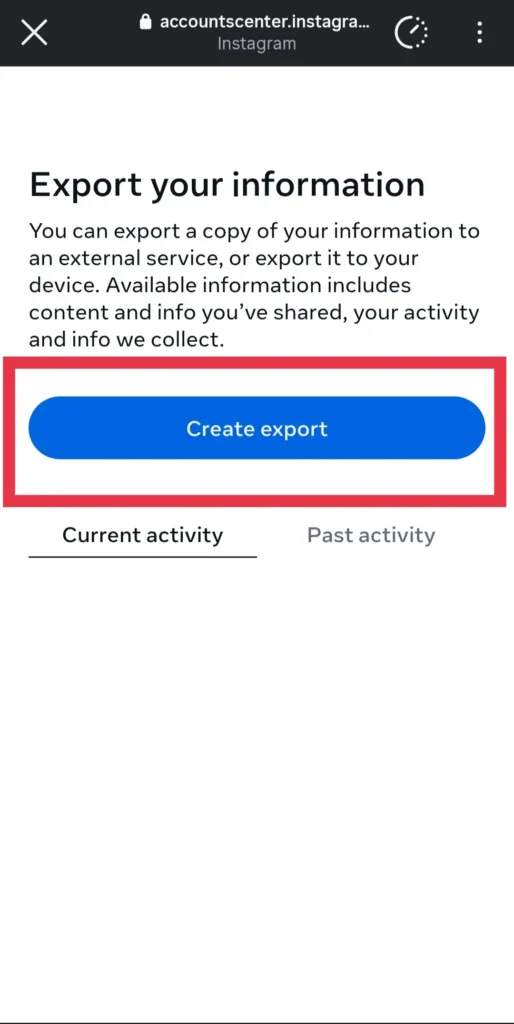
Step 5: Tap “Create Export”
Hit the Create Export button. This starts the whole process.
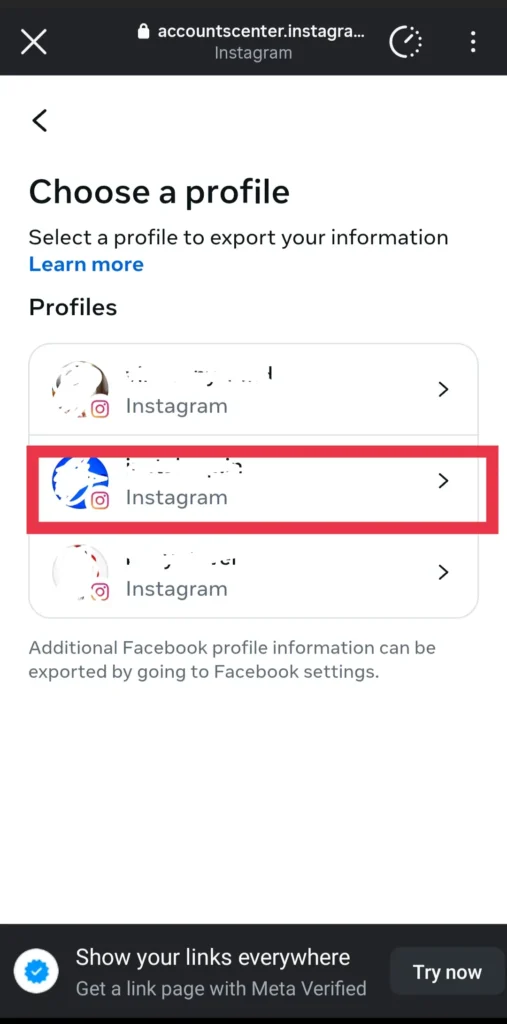
Step 6: Select Your Instagram Account
If you have multiple Instagram accounts connected, you’ll be asked to choose which one. Pick the account you want to check unfollowers for.
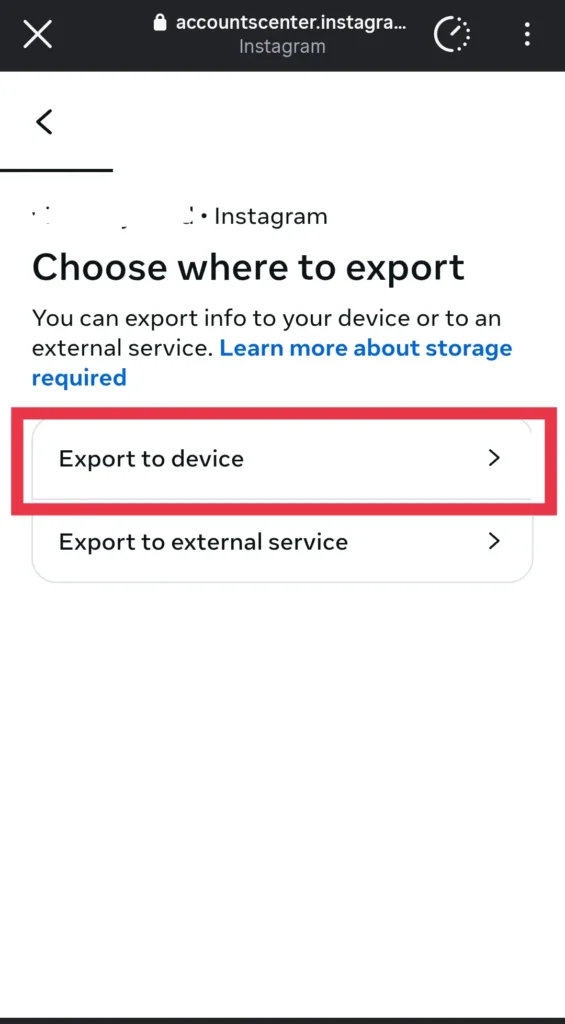
Step 7: Choose “Export to Device”
You’ll see two options:
- Export to Device
- Export to Cloud
Always choose Export to Device. This downloads the ZIP file directly to your phone or computer — no cloud storage needed, no extra steps.
Step 8: Configure Your Export Settings — This Part Is Important
This is the step most people rush through and then wonder why the tool doesn’t work. Take 60 seconds here.
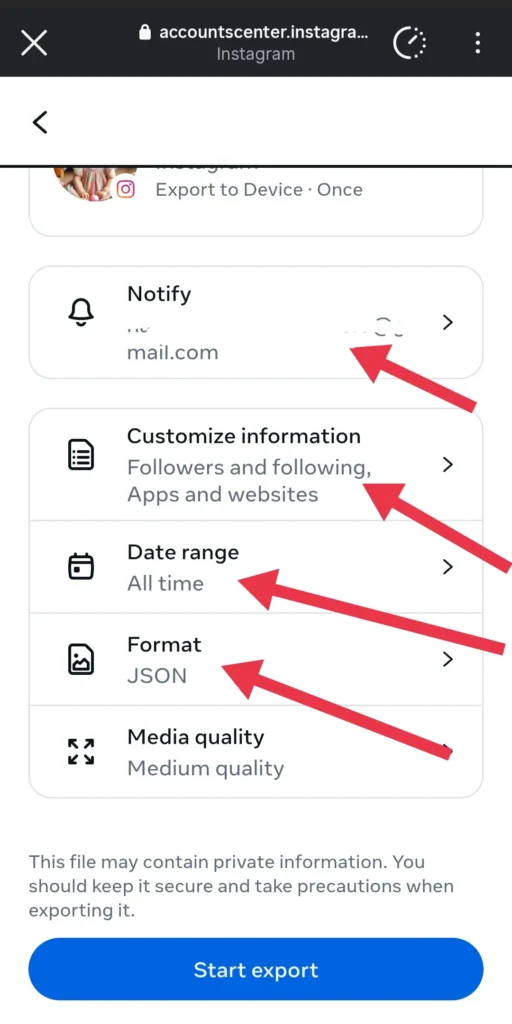
8.1 — Check your email Under “Notify,” make sure the email shown is one you actually have access to. Instagram will send your download link here.
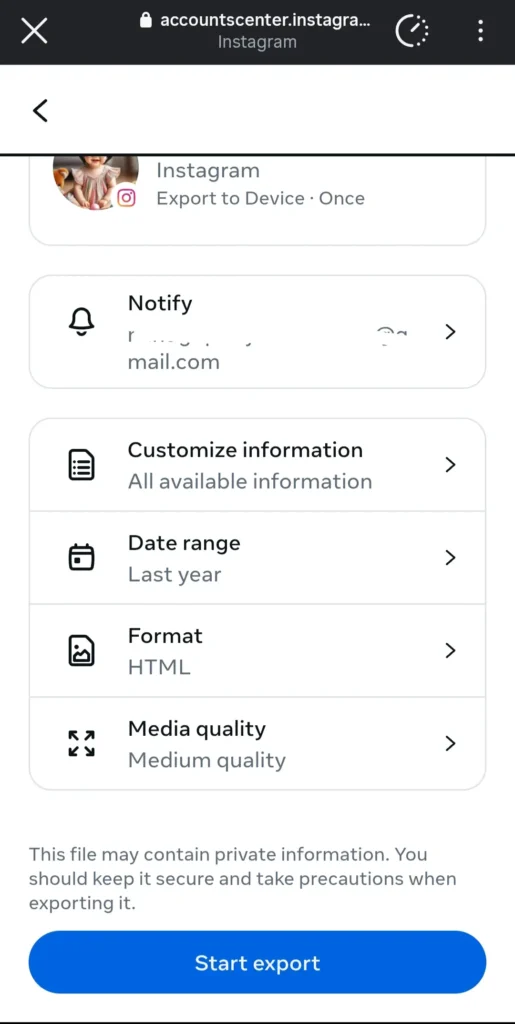
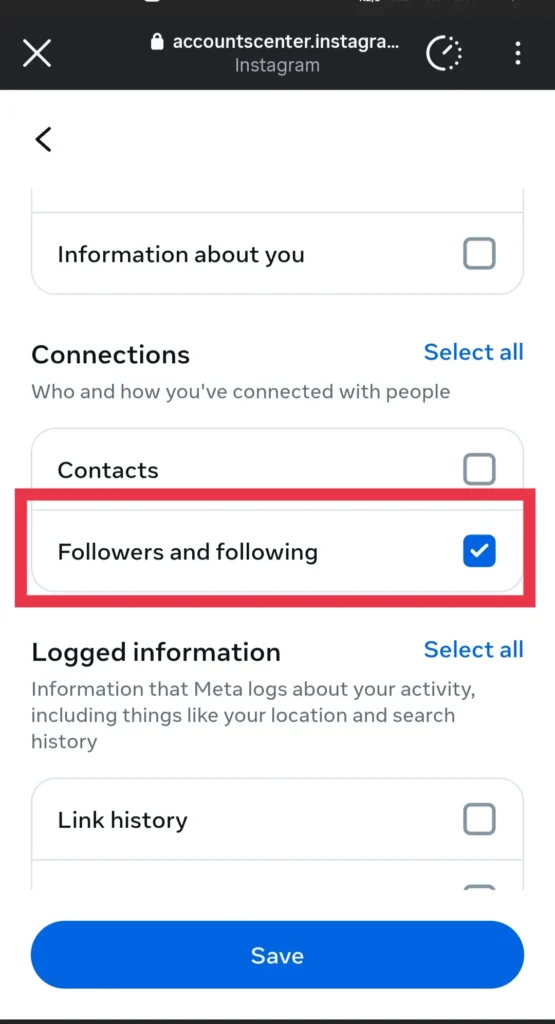
8.2 — Tap “Customize Information” You don’t need your entire Instagram history — just the followers data. So:
- Tap Customize Information
- Uncheck everything
- Select only Followers and Following
This keeps your ZIP file small and fast to generate.
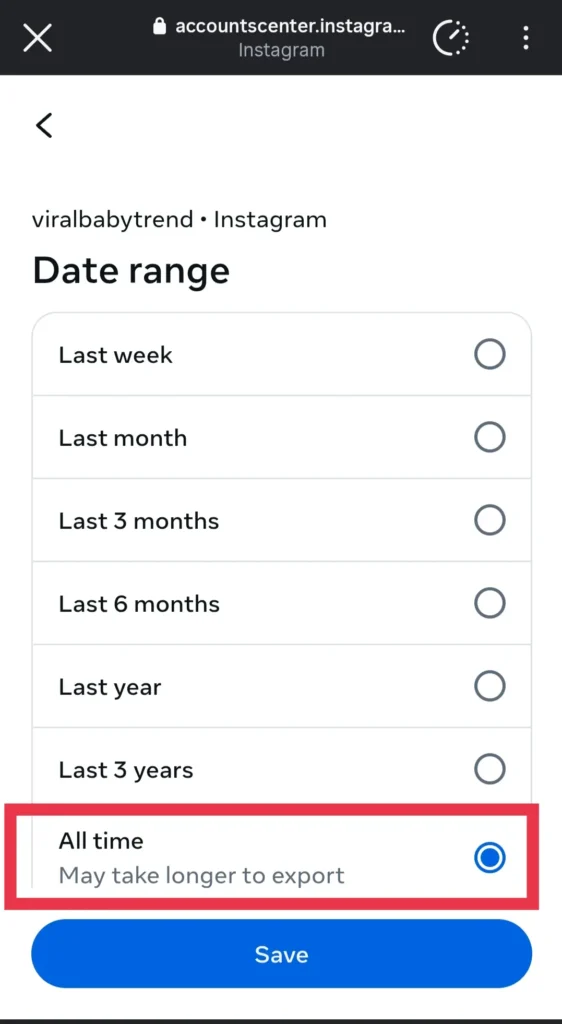
8.3 — Set Date Range to “All Time” Choose All Time as your date range. This gives you your complete followers and following lists — not just recent activity.
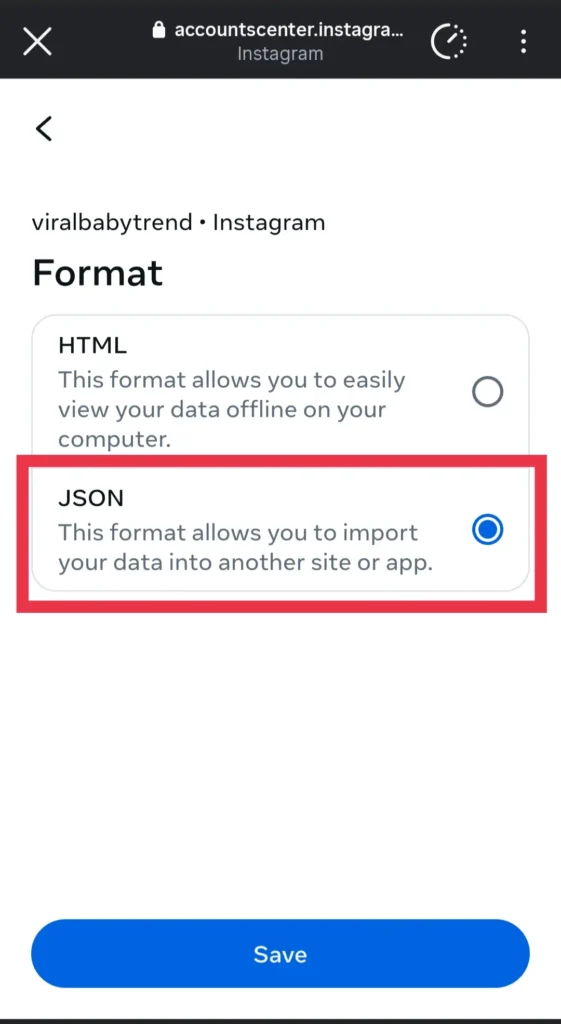
8.4 — Change Format to JSON This is the most important setting. Change the file format to JSON.
Honestly, this is the step that causes the most confusion. The default might be set to HTML. But tools like Unfollowerstrackers only work with JSON files — so make sure this is set correctly before you continue.
Your final settings should look like this:
| Setting | What to Select |
|---|---|
| Notify (email) | Your actual email |
| Information | Followers and Following only |
| Date Range | All Time |
| Format | JSON |
Step 9: Tap “Start Export”
Once your settings are confirmed, tap Start Export. Instagram will start preparing your data.
Depending on how old your account is and how many followers you have, this can take anywhere from 5 minutes to about an hour. Usually it’s pretty quick.
Step 10: Wait for the Email From Instagram
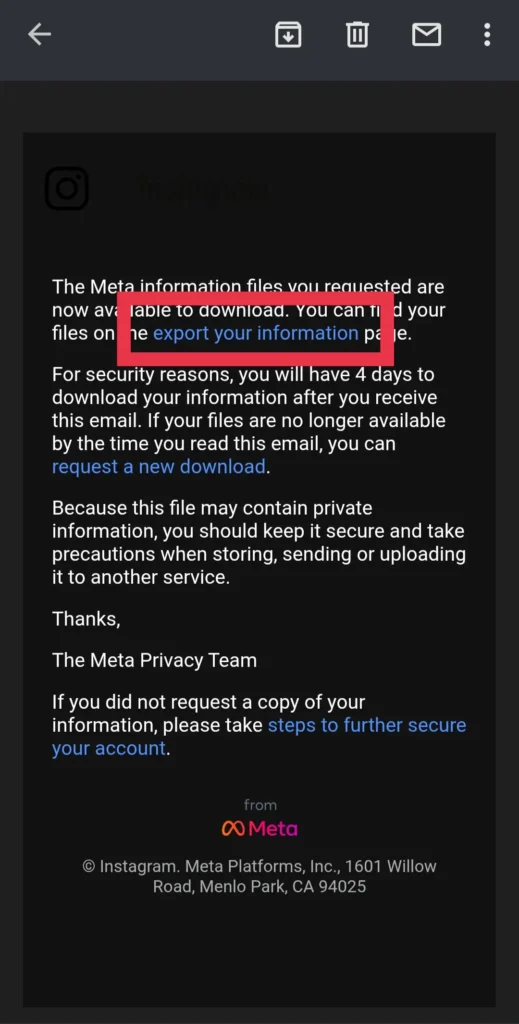
Instagram will send you an email with the subject something like:
“Your Instagram information is ready to download”
Check the inbox of whichever email you entered. If you don’t see it after an hour, check spam.
Step 11: Download the ZIP File
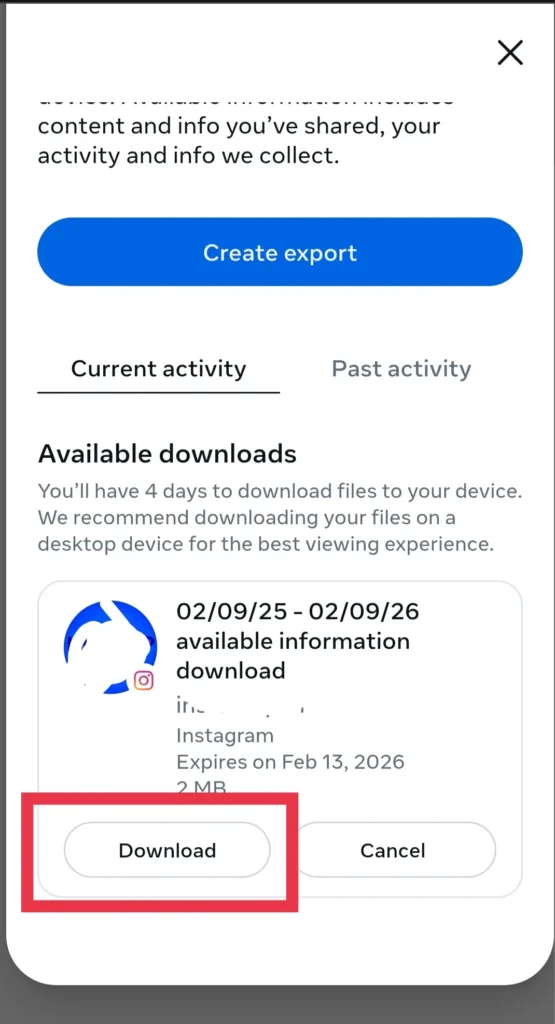
Open the email. Tap Download Information. Instagram will ask you to log in one more time (security measure — totally normal). Then your ZIP file downloads to your device.
Don’t unzip it. Don’t open it. Just leave it as-is.
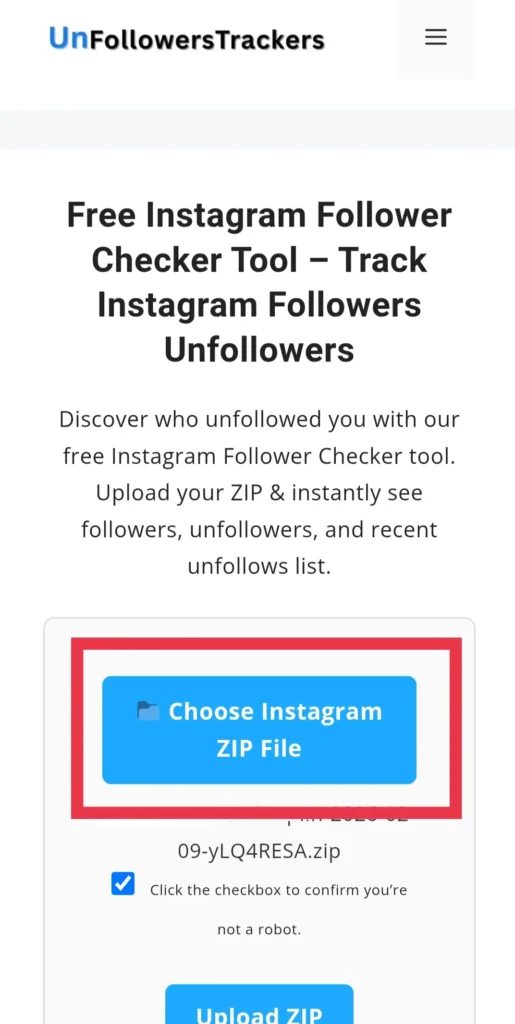
Step 12: Upload It to Unfollowerstrackers
Now the fun part.
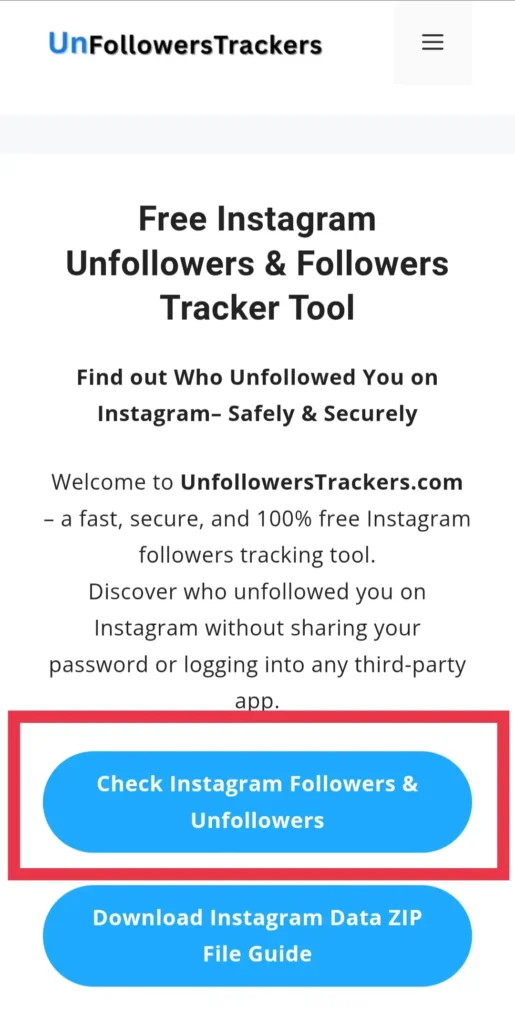
- Go to Unfollowerstrackers
- Click on Check Instagram Followers & Unfollowers
- Upload the ZIP file you just downloaded
- Let the tool do its thing
Takes about 10-15 seconds to analyze.
- Upload the downloaded ZIP file
- Let the tool analyze your data
What You Can See After Uploading the ZIP File
Once your ZIP file is uploaded and analyzed, you get a clean, organized breakdown:
- Who unfollowed you on Instagram
- Accounts you follow who don’t follow you back
- People who follow you but you don’t follow back
- Pending follow requests
- Clickable profile links so you can go directly to any account
No guessing. No manual comparison. Just a clear list.
And if you want to understand why people have been unfollowing you — not just who — our guide on why people unfollow on Instagram breaks down the real reasons. Some of them might surprise you.
This method is:
✅ 100% safe
✅ No password required
✅ No third-party app login
✅ Uses official Instagram data
Why This Method Is Better Than Unfollowers Apps
There are hundreds of apps on the App Store and Google Play promising to show you your Instagram unfollowers. Most of them want you to log in with your Instagram credentials. Some of them want “full account access.”
That’s a problem. A big one.
Instagram’s terms of service explicitly ban third-party apps from accessing follower data through unofficial means. And beyond the TOS issue — handing your password to a random app is how accounts get hacked, sold, or spammed.
The ZIP file method has none of those risks:
- Instagram gives you the data directly
- No password goes anywhere
- No app gets account access
- You’re not violating any Instagram rules
- Results are 100% accurate because the data comes from Instagram itself
It’s not just the safer option. It’s genuinely the better option.
If you’ve already been dealing with unexplained follower drops and want to understand what’s happening with your account more broadly, check out our post on why you might be losing Instagram followers — it covers a lot of the patterns people miss.
Frequently Asked Questions
How long does Instagram take to prepare the ZIP file?
Usually 5 minutes to an hour. Big accounts with lots of data take longer. Most people get their file within 15-20 minutes.
Do I need to share my Instagram password anywhere?
No. Not with Unfollowerstrackers, not with any other tool. The ZIP file method is specifically designed to avoid that.
What if I accidentally chose HTML format instead of JSON?
You’d need to redo the export and select JSON this time. The tool won’t work with HTML files — it needs JSON specifically.
Can I do this on mobile?
Yes — the whole process works on both mobile and desktop. The Instagram app steps are the same on iOS and Android.
Will Instagram notify anyone that I checked this?
No. Downloading your own data is completely private. Nobody gets notified — not the people who unfollowed you, not Instagram, nobody.
Can I check multiple Instagram accounts with this?
Yes. Just download a separate ZIP file for each account and run them through the tool individually.
Why do I see accounts I don’t recognize on my followers list?
Could be ghost followers — inactive or fake accounts that followed you at some point. If you want to dig into that, our guide on what ghost followers are on Instagram explains exactly what they are and how to deal with them. You can also use our free Instagram fake follower checker to spot them quickly.
One More Thing Worth Knowing
Your Instagram data ZIP file shows you a snapshot of right now. It’s not live — it doesn’t update automatically.
So if you want to track unfollowers on an ongoing basis, you’d need to download a new ZIP file each time and compare. It takes maybe 10-15 minutes per check, which honestly isn’t bad given how safe and accurate it is.
And if after checking your list you realize you’ve lost more followers than you expected — don’t spiral. Our guide on how to recover from losing followers walks through exactly what to do next, step by step.
Wrapping It Up
So — how can you know who unfollowed you on Instagram for free?
Download your official Instagram data ZIP file, upload it to Unfollowerstrackers, and you’ll have your answer in under two minutes. No password sharing, no sketchy apps, no guessing.
Here’s the quick recap:
- Go to Settings → Accounts Center → Your Information and Permissions
- Request your data export → select Followers and Following only → JSON format → All Time
- Wait for Instagram’s email → download the ZIP file
- Upload to Unfollowerstrackers → see your full unfollowers list
That’s genuinely it.
Your follower list is your business. Now you actually know what’s happening with it.

1 thought on “How Can i know Who Unfollowed me on Instagram Free”