Enter Your Instagram Username
You’ve been on Instagram for years. Thousands of photos. Hundreds of videos. DMs with friends. Comments on posts. All those memories just sitting in Instagram’s servers.
But here’s the thing that keeps people up at night: What if something happens to your account? What if it gets hacked? What if Instagram gets mad and deletes you? What if you just want to take a break and then come back?
Suddenly all those years of content? Gone forever. Deleted permanently. No way to recover it.
This is why knowing how to download your Instagram data ZIP file is actually super important. And honestly? It’s way easier than you think. Takes like 5 minutes.
This guide walks you through exactly how to download Instagram data, what you’ll get in that ZIP file, and why you absolutely should do it today.
Why You NEED to Download Your Instagram Data ZIP File (Real Reasons)
Before we get into the “how,” let’s talk about the “why.” Because honestly, most people have no idea that downloading Instagram data is even possible.
Backup Your Memories: All those photos, videos, stories, and messages? They’re stored in YOUR Instagram account, yes. But they’re also stored on Instagram’s servers. If anything goes wrong—hacked account, deactivation, platform issues—your memories could vanish. Download your Instagram data ZIP file and you have a permanent backup.
Prepare for Account Deletion: Thinking about deleting your Instagram account? Before you do, download your Instagram data ZIP file. You get everything. Then you can safely delete your account knowing you didn’t lose years of content.
Protect Your Privacy: Want to see exactly what data Instagram has about you? Download your Instagram data and see everything. Your activity, your searches, your interests, your engagement patterns. It’s eye-opening.
Analyze Your Account: Got your Instagram data ZIP file? You can analyze engagement patterns, see which posts perform best, understand your audience better. It’s like having your own analytics dashboard.
Create a Personal Archive: Years of your life documented in photos. Want to make a physical photo book? Archive website? Portfolio? Download your Instagram data ZIP file and you’ve got everything you need.
Switch Platforms: Building a presence somewhere else? Download your Instagram data and reuse photos, videos, and content on other platforms. No need to dig through your account again.
What’s Actually Inside Your Instagram Data ZIP File?
Okay, so when you download your Instagram data ZIP file, what exactly are you getting? Let me break it down because it’s actually a lot more than you’d think.
Your Instagram Data ZIP File Contains:
Photos & Videos: Every single photo and video you’ve posted. Organized in folders. High quality versions.
Comments: Every comment you’ve made on other posts. Every comment people made on your posts.
Likes & Engagement: Record of everything you’ve liked, saved, shared. Your entire engagement history.
Direct Messages: Full copies of your DM conversations. Yes, even the ones you thought you deleted.
Profile Information: Your bio, profile picture, follower list, following list. Account details.
Search History: Every account you’ve searched for. Every hashtag you’ve looked at. Everything.
Stories Archive: Stories you’ve posted (if you saved them).
Shopping Activity: If you used Instagram Shopping, your activity there too.
Ads Activity: Which ads you clicked. Your ad preferences. What Instagram thinks you’re interested in.
Settings & Preferences: Your notification settings, privacy settings, all configured preferences.
Login Activity: When you logged in, from which devices, from which locations.
API Activity: If you connected third-party apps, records of what they accessed.
Basically? Download your Instagram data ZIP file and you get EVERYTHING. It’s actually kind of scary how much data Instagram has on you.
How Can i know Who Unfollowed me on Instagram Free
How Much Storage Space Do You Need?
Before you download your Instagram data ZIP file, make sure you have enough space. Instagram data takes up serious storage depending on how active you’ve been.
Light User (few photos): 500 MB – 1 GB
Regular User (years of activity): 2-5 GB
Heavy User (lots of photos/videos): 10-30+ GB
Pro tip: Get an external hard drive or USB flash drive. Like a $20 drive from Amazon. Store your entire Instagram data ZIP file there. Keep it safe. Keep it backed up.
Method 1: Download Instagram Data Via Desktop (Most Complete)
Step 1: Go to Meta Accounts Center
Open your browser (Chrome, Safari, Firefox, whatever). Go to accountscenter.meta.com or search “Meta Accounts Center” on Google.
You’ll see Meta’s Accounts Center page. Look for your Instagram account listed there.
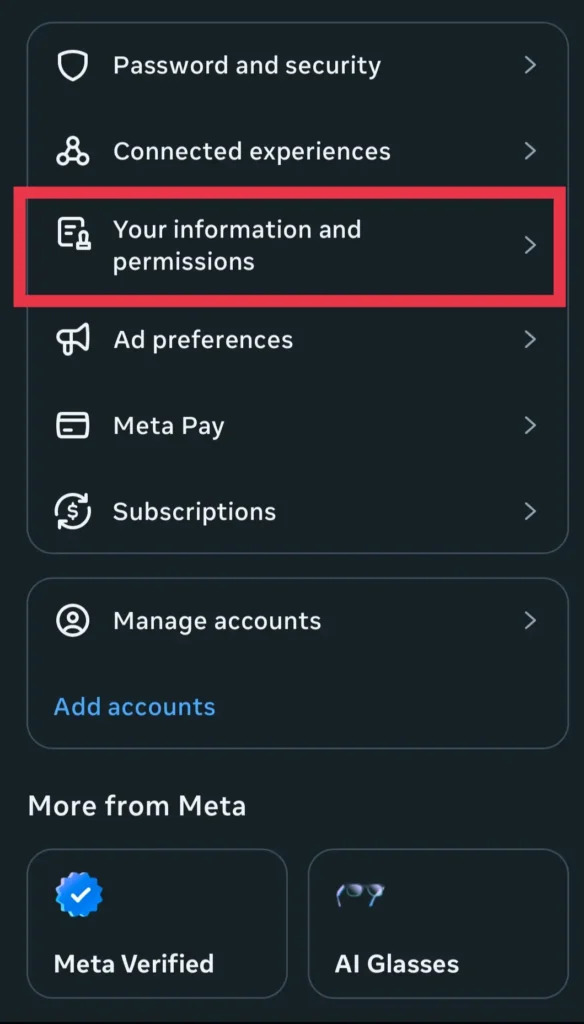
Step 2: Find Your Information & Permissions
Once logged in, look for “Your Information and Permissions” or similar option. Click on it.
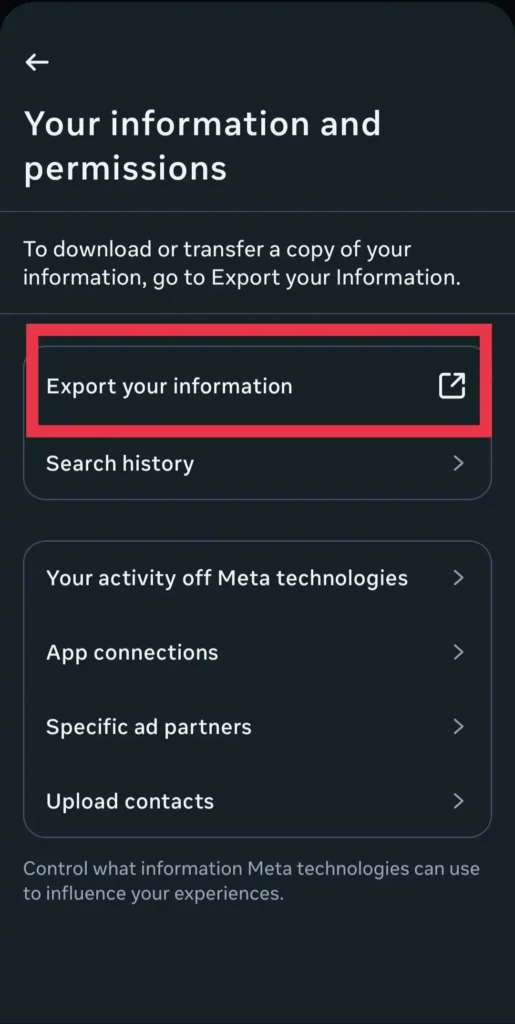
Step 3: Click “Download Your Information”
Look for a button or option that says “Download Your Information” or “Export Your Data.” Click that bad boy.
Step 4: Choose What Data to Download
Instagram will ask what you want in your ZIP file. Options:
- All Information: Everything. Photos, videos, messages, comments, everything. Takes longest. Gets most data.
- Specific Information: Just photos, or just messages, or just comments. Pick what you want.
Pro move: Choose “All Information.” You want the complete backup. Better to have too much data than miss something important.
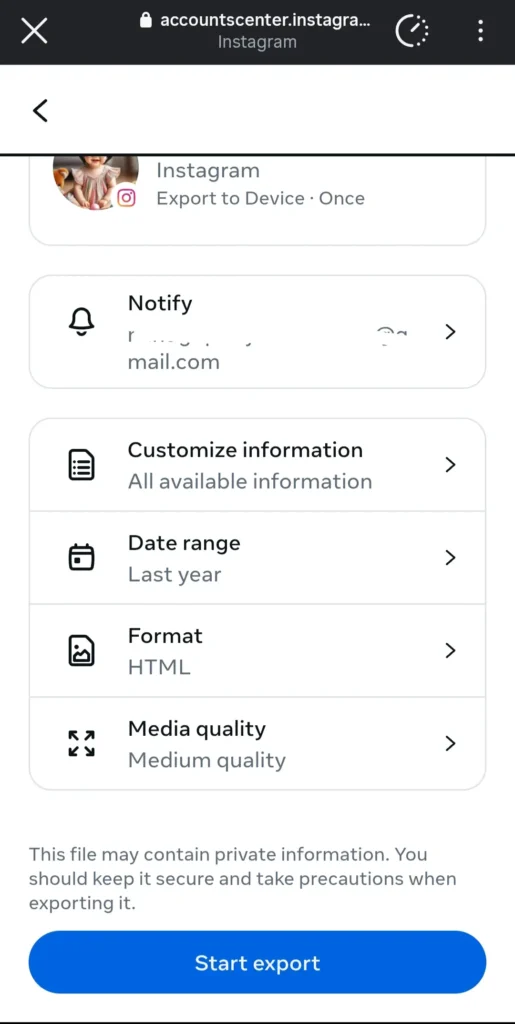
Step 5: Select Your Format (HTML or JSON)
Instagram asks: Do you want HTML or JSON format?
HTML: More human-readable. Open in any web browser. Easy to view. Better for most people.
JSON: More technical. Better for data analysts. Harder to view casually. Skip this unless you know what JSON is.
Pick HTML. Way easier. You’ll thank me later.
Step 6: Choose Media Quality
Instagram asks what quality you want your photos/videos.
High Quality: Massive file size. Takes longer. But your memories look perfect.
Medium Quality: Reasonable file size. Still looks great. Good balance.
Low Quality: Tiny file size. But looks like 2005 (seriously bad).
Pick High Quality. You want your memories to look good. You’re backing them up anyway.
Step 7: Select Date Range (Optional)
Want data from a specific time period? You can select start and end dates. Or just leave it blank for everything.
Pro tip: Leave it blank. Get everything.
Step 8: Verify Email
Instagram confirms your email address. Make sure it’s correct because they’ll send your download link there.
IMPORTANT: Double-check that email. If it’s wrong, you won’t get your download link.
Step 9: Enter Your Password
For security, Instagram asks for your password. Type it in to confirm you’re really requesting your data.
Safety note: Instagram only uses this to verify. They don’t store it or anything sketchy.
Step 10: Submit Your Request
Click “Submit” or “Create Export” or whatever the button says.
Instagram will say something like “Your data is being prepared. We’ll email you when it’s ready.”
Step 11: Wait for Email (48 Hours Maximum)
IMPORTANT TIMING: Instagram says it takes up to 48 hours to prepare your data. But usually it’s much faster—sometimes within an hour. Check your email regularly (including spam folder). Don’t go to sleep and forget about it!
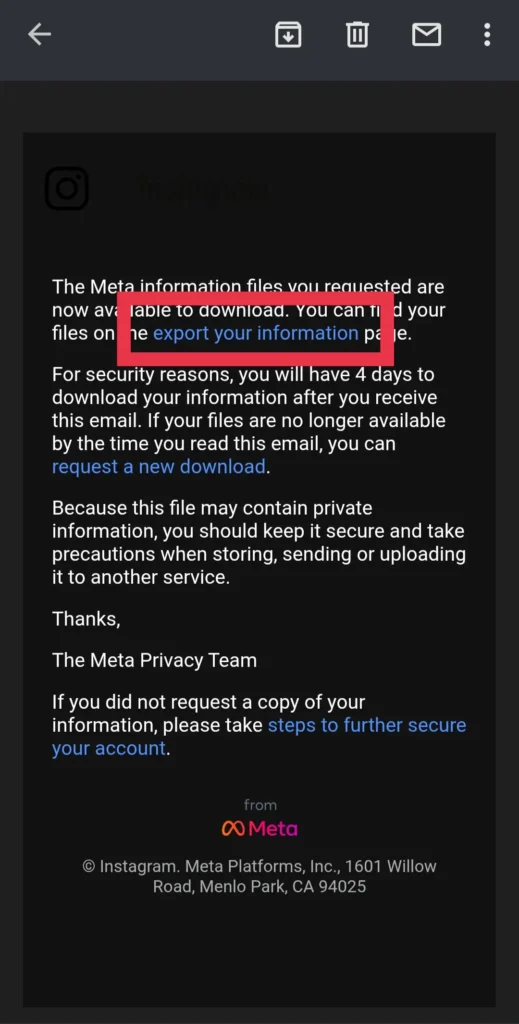
Step 12: Download Your Instagram Data ZIP File
Once the email arrives (subject line: something like “Your Instagram data is ready”), click the download link.
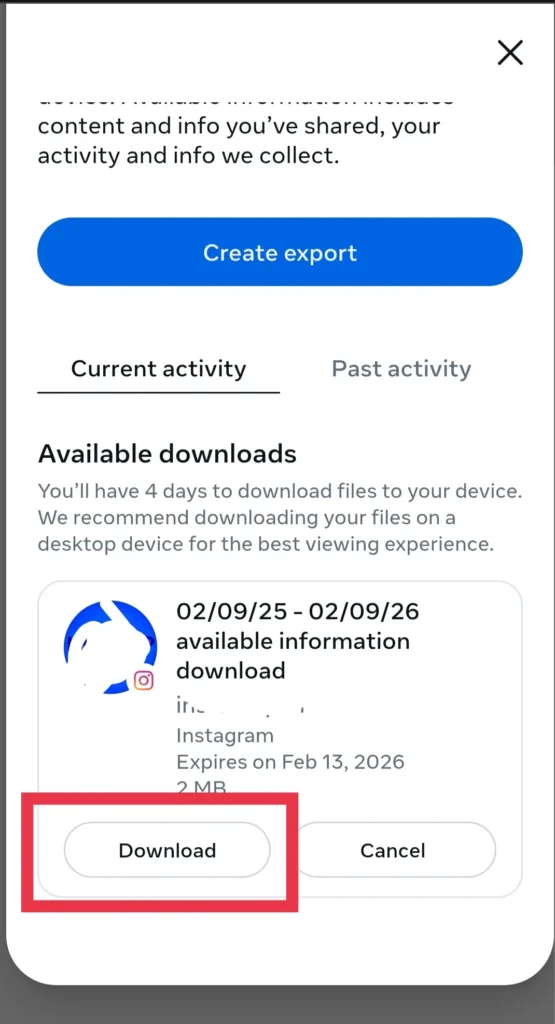
The file will start downloading as a ZIP file. This is your Instagram data ZIP file. It’ll be named something like “instagram.zip” or “instagram_export.zip.”
 Super Important: You only have 4 days to download from that link. After 4 days, the link expires for security reasons. Don’t wait! Download immediately when you get the email.
Step 13: Extract Your ZIP File
On Windows: Right-click your ZIP file. Select “Extract All.” Choose where to save it.
On Mac: Double-click the ZIP file. It automatically extracts.
On Linux: Use terminal command: `unzip instagram.zip`
Now you have a folder with all your Instagram data inside!
Method 2: Download Instagram Data Via Phone App (Simpler But Less Complete)
Quick Phone Steps
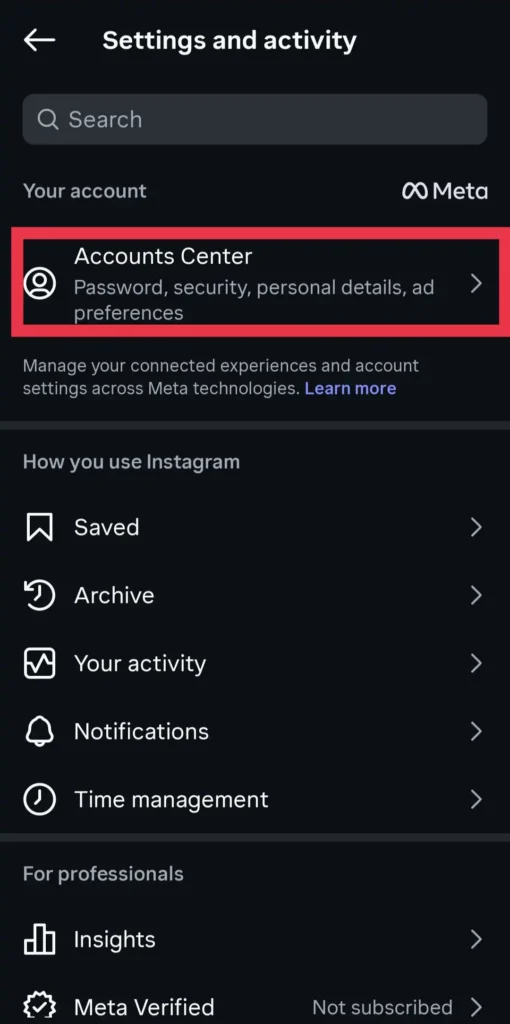
Step 1: Open Instagram app. Go to Profile → Menu (three lines) → Settings.
Step 2: Look for “Accounts Center” or “Your Activity.”
Step 3: Find “Download Your Information” or “Export Data.”
Step 4: Follow same steps as desktop (choose data type, format, quality, etc.)
Step 5: Wait for email. Click download link.
Pro tip: Desktop method is easier and faster. Do it on computer if you can.
What Happens After You Download Your Instagram Data ZIP File?
So you’ve got your ZIP file. What now?
How to Open & View Your Data
Extract the ZIP: Right-click (Windows) or double-click (Mac) to extract.
Open HTML File: Find “index.html” or similar. Right-click and open with your browser. You’ll see a website with all your data.
Browse Folders: You’ll see folders like “photos,” “videos,” “messages,” “comments.” Click through to see your content.
It’s a Local Website: It looks like a website but it’s running offline on your computer. No internet needed to view it.
Where to Store Your Instagram Data ZIP File
Best practice: Don’t just leave it on your computer.
- External Hard Drive: Get a $30 external drive. Store it safely. Unplug it when not in use.
- USB Flash Drive: Cheap, portable, reliable. Keep it in a safe place.
- Cloud Storage: Google Drive, Dropbox, OneDrive. Encrypted and backed up automatically.
- Multiple Copies: Best idea? Keep one copy in cloud AND one on external drive. Belt and suspenders.
Common Issues & Fixes When Downloading Instagram Data
I didn’t get the email
Fix: Check spam folder. Add help@instagram.com to contacts. Make sure email address in your account is correct.
The download link expired
Fix: You had 4 days. Submit a new request. This time download immediately when you get the email.
File is too large to download
Fix: Make sure you have enough storage space. Or download to external drive. Or choose “specific information” instead of “all information” to get less data.
I can’t extract the ZIP file
Fix: On Windows, make sure you’re using built-in extraction (right-click → Extract). On Mac, just double-click. On both, avoid third-party apps that might corrupt the file.
HTML won’t open in my browser
Fix: Try different browser. Try dragging the file into the browser. Make sure you extracted the ZIP completely
Should You Download Your Instagram Data Before Deleting Your Account?
Short answer: YES. Absolutely. 100%.
If you’re thinking about deleting your Instagram account, please do this first:
- Download your Instagram data ZIP file (follow this guide)
- Store it somewhere safe
- Make sure it actually contains everything you want
- THEN delete your account
Because once you delete? It’s gone. Permanently. No way to recover it. You can’t undo it after 30 days.
Real Talk: People delete accounts thinking “I’ll just re-download my stuff later.” Then they can’t. They’ve lost years of photos. Don’t be that person. Download now, delete later.
How Often Should You Download Your Instagram Data?
Great question. Here’s what I recommend:
Once a month: Download a fresh copy. Keeps your backup up-to-date with new photos, messages, everything.
Or at least once a year: At absolute minimum, get an annual backup. Like an insurance policy.
Before major events: Going on vacation? Getting a new phone? Delete your account? Download before any major change.
Think of it like regular backups for your computer. Do it. Set a reminder. Make it a habit.
Weird But Cool Stuff You Can Do With Your Instagram Data ZIP File
Once you’ve got your Instagram data ZIP file, here’s some fun stuff:
Make a Photo Book: Use your photos from the ZIP file to create a Shutterfly/Snapfish photo book. Instant nostalgia.
Make a Video: Take your photos and make a timeline video with music. Actually beautiful.
Analyze Your Data: See which photos got most likes, comments, engagement. Understand your audience.
Create Wall Art: Print your most popular photos and frame them.
Create Portfolio: Use your photos for a professional website or portfolio.
See What Meta Knows: Seriously creepy/interesting to see your ads activity, engagement patterns, location data.
Final Recommendations
TL;DR: Download your Instagram data ZIP file. It’s free. Takes 5 minutes to request. Takes 48 hours (usually much faster) to prepare. Takes 5 minutes to download. Do it today.
The Real Truth: Your Instagram account isn’t actually yours. It’s Meta’s. They let you use it. If something happens, you lose everything. Unless you’ve downloaded your Instagram data ZIP file. Then you’ve got a backup.
My Honest Recommendation: Download your data. Store it somewhere safe. Do it monthly. It’s the only way to truly own your memories and content. Don’t wait until something goes wrong.
Seriously though: Do this today. Right now. While you’re thinking about it. Don’t procrastinate. Click that link. Submit the request. It literally takes 5 minutes and you’ll sleep better knowing your data is backed up.
Have you downloaded your Instagram data ZIP file? Drop a comment and let us know if this guide helped. Questions? We answer everything!

1 thought on “How to Download Your Instagram Data ZIP File – Complete Step by Step Guide”